Page Templates
Page templates allow you to customize the layout and functionality of different types of pages on your Shopify store.
Assigning a Template
A new page uses the default template. Follow these steps to assign a different one:
- Log in to your Shopify Admin.Go to Shopify Admin and log in with your credentials.
- Go to Content > Pages.This lists every page on your store.
- Select the page you want to change.This opens that page on its own, with its settings in the sidebar on the right.
- Find Template.It is the last card in the right-hand sidebar.
- Choose a template from the dropdown.The dropdown lists every template your published theme provides for a page. Picking one changes the layout and the sections that page is built from.
- Save.The change is live straight away. Check how your page looks in the theme editor.
The dropdown only lists templates that exist in the theme you have published. A template you have added to a theme you are still previewing will not appear until that theme is published.
Tip
Learn how to open and configure page settings on the Page Settings page.
Default Page
The Default page template includes a page section.
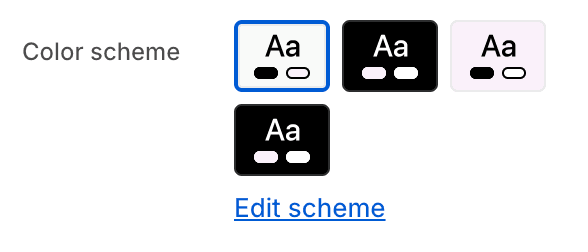
- Color schemeChoose a color scheme for the page section.
To edit all your theme's colors, including color schemes, go to your color theme settings.
Contact Page
The Contact page template includes a contact form.

- HeadingEdit contact form heading
- ImageUpload an image to display alongside the contact form.
- VideoSelect a video to display alongside the contact form.
- Desktop layout
- Image/video first
- Form first
Page with Header Banner
The Page with header banner template shows your page title in a banner, with the page content below it. The banner and the content each take their own color scheme, so the banner can carry a background image and a contrasting color while the content below stays readable.
- Banner color schemeChoose a color scheme for the banner holding the page title.
To edit all your theme's colors, including color schemes, go to your color theme settings.
- Content color schemeChoose a color scheme for the page content below the banner.
To edit all your theme's colors, including color schemes, go to your color theme settings.

- Banner imageUpload an image to use as the banner.
- Color filter intensityAdjust the intensity of the color filter applied to the banner image.
- Disable background filterToggle to disable the background filter on the banner image.
Events
The Events template is for pages that ask for an enquiry rather than an order — weddings, events, corporate accounts, or any work you quote for. It has no settings of its own, and is built from sections documented elsewhere:
- Image bannerThe opening banner.Learn how to open and configure its settings on the Image Banner page.
- Images with textThe row of previous work.Learn how to open and configure its settings on the Images with Text page.
- Multicolumn textThe customer quotes.Learn how to open and configure its settings on the Multicolumn Text page.
- Contact formThe enquiry form.Learn how to open and configure its settings on the Contact Form page.
- DividerThe spacing between them.Learn how to open and configure its settings on the Divider page.
Add, remove and reorder those sections as you would on any page.
The page’s own content, typed into the page editor in Shopify admin, is not shown on this template. Everything on the page comes from the sections, so put your text into a section rather than the content box.